Prerequisition
- VSCode or the other variants like Codium
- install plugin for Java (https://open-vsx.org/extension/vscjava/vscode-java-pack)
- for springer project (https://open-vsx.org/extension/vscjava/vscode-spring-initializr)
- Java Development Kit (JDK) installed via sdkman -> https://sdkman.io
- check the installation via
javac --versionfor compiler andjava --versionfor runtime
- check the installation via
- Maven (also install via sdkman)
- check installation with
mvn -v
- check installation with
add .vscode settings.json such as
|
|
Create Project
There are two ways creating Maven project
Using command
we can create project using command
|
|
if we run the command without -Dfilter, there are thousands of files appear on the terminal (try by yourself). Pick the “quickstart” template option. In my case, this is number 9
|
|
Then choose maven version (pick the latest version), groupID as organizatoin name or your name e.g. “com.ansuf”, artifactID is the project name e.g. “todoapp” and the last is package that we can put as the same as groupID.
Maven Command
After succeffully creating the project, cd terminal to the project directory. And run mvn compile then you’ll see a new folder target created in the project directory.
Maven Clean
To clean it up - after running mvn compile or mvn test, just run mvn clean
Using IDE (VsCode)
- run
cmd/ctrl + shift + p> chooseMaven>maven-archetype-quickstart
Add Dependency
Using IDE
- run
cmd/ctrl + shift + p> chooseMaven: add a dependency - input keywords to search artifacts from Maven Central Reposory, i.e.
spring-jdbc - pick the package that you want
Profile
Profiles are a useful tool to set up environment‑specific build properties. They are usually created in the pom.xml, but can be configured in the settings.xml. We’re going to create an example using the maven.test.skip or the skipped property inside of your pom.xml. And the same profiles can be executed from the command line as well using the ‑D property. A great example of profiles are if you’ve used anything specific to your environment such as a database or database connection that you might use for testing and you can enter those parameters through a profile.
Creating Profile
put the profiles in the pom.xml file
|
|
You can put anywhere but, I sugest to put after <dependencies> and before <build>.
create logging.properties file in the src/main/resources/prod with content logging.level=prod and also for the dev profile.
Run Profile via IDE
now you can test it using maven controller in vsCode panel. run the Lifecycle clean - compile, see the file target/classes/logging.properties and check the content. Play around by changing the Profiles to dev, compile the code and check again the result.
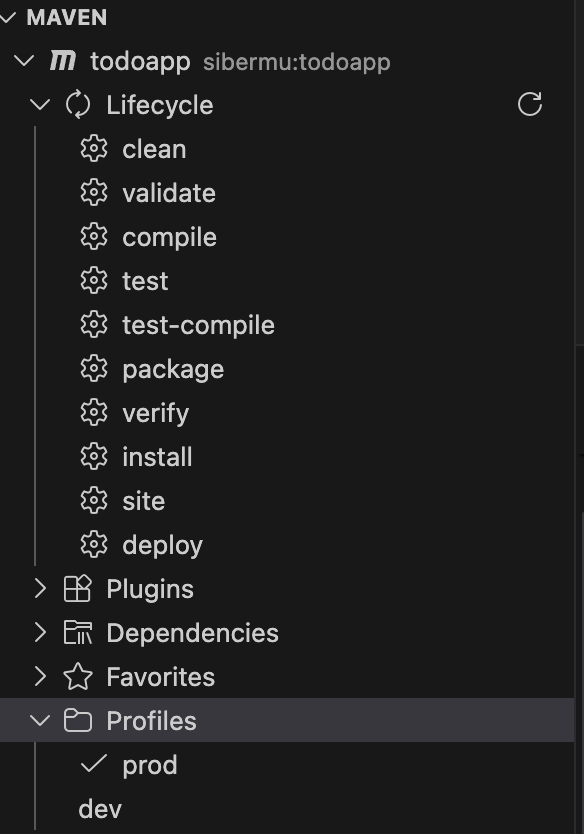
Maven pannel in vscode
Run Profile via CLI
you also can run or compile the profile via cli using command
|
|
Multi Module Project
Multi Module Project is a project that consist multiple project inside it.
Using CLI
- create parent module or project, run
|
|
- In your parent pom.xml, make sure it has:
|
|
update pom.xml in the parent directory, webproject. Change the
|
|
- from terminal ensure you are in the
webprojectfolder, and run
run
|
|
update pom.xml in the module directory
|
|
- alternatively you can create manualy, instead of using step 3, by running
|
|
and put pom.xml as follow
|
|
Using IDE
- create project using
cmd/ctr + shift + p->Java: Create java project->Maven->maven-archetype-quickstart - on the project explorer, right click the project -> Maven -> “New Module..”
- select the parent,
- enter name of the project
- you can move the project module to directory
modulesbut you need to update the pom file both in the parent and the module (see previous tutorial)
Reload VsCode
If you have problem with the IDE, reload the Java Language Server to ensure VS Code recognizes the configuration. Use the command palette (Cmd+Shift+P on macOS) and run:
|
|
Then build the reactor from the parent folder so webmodel is available on the classpath: and run
|
|
Create Module
Using BOM
Bill of materials file, also referred to as a BOM. it’s essentially a parent POM file.
There are a few things to consider as to why you might want a BOM. First off is if you’re going to be using one, you need to specify the type of POM in the BOM file. It is one of the specified types that you can have of that. It basically means it’s a parent project. The reason why you’d want to use this though is it allows you to explicitly define specified versions for your subprojects or your imported POM to use. We just sort of saw an example of this with the parent POM in the multi‑module project, but we can use this as an independent file and just utilize the dependency management portion of it.